Category: Apple

Everything Apple

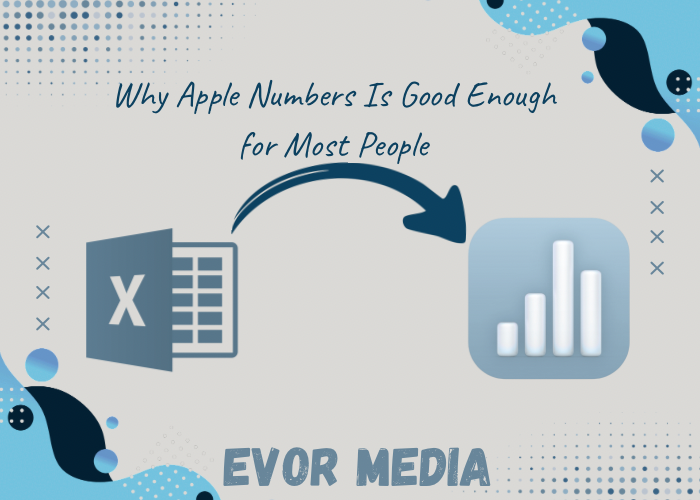
  • Why Apple Numbers Is “Good Enough” for Most People

    And Why You Should Take the Time to Learn It
    When people think about spreadsheet software, the name that usually comes to mind is Microsoft Excel—and for good reason. It’s been around for decades, it’s incredibly powerful, and it’s widely used in industries ranging from finance to engineering. But what if you’re not a financial analyst or data scientist? What if you just want to organize your personal finances, track a project, or build a clean-looking chart?

    Here’s the truth that many tech-savvy people won’t say out loud: Apple Numbers is more than good enough for most users. In fact, for a large number of people, it’s the better choice.

    This post explores why Numbers is a perfectly capable spreadsheet tool for everyday use, what makes it different from Excel, and why learning to use it is a smart and practical decision—especially if you’re already embedded in the Apple ecosystem.


    1. Numbers Has a Clean, User-Friendly Interface

    The first thing you’ll notice about Apple Numbers is its focus on design and simplicity. Unlike Excel, which opens with a dense grid of cells, Numbers greets you with a blank canvas. You can place tables, charts, images, text, and shapes wherever you want on the sheet.

    This layout is more visual and less intimidating, especially for beginners or casual users. Think of it as a hybrid between a spreadsheet and a presentation tool. It’s particularly helpful when you’re:

    • Creating reports that mix data with narrative
    • Designing budgets you actually want to look at
    • Laying out planners or checklists
    • Building interactive dashboards

    Apple designed Numbers to help you tell a story with your data—not just crunch it.


    2. Most People Don’t Need Excel’s Power Features

    Yes, Excel is incredibly powerful. It can handle:

    • Massive datasets
    • Pivot tables
    • Macros and scripting
    • Complex business intelligence functions

    But how many people actually use those features?

    If you’re a:

    • Student tracking assignments
    • Freelancer creating an invoice
    • Homeowner managing a renovation budget
    • Parent organizing a family schedule
    • Entrepreneur building a basic inventory

    …then Numbers probably offers everything you need, and more.

    For basic to intermediate needs, Numbers offers:

    • Over 250 built-in functions
    • Intuitive charts and graphs
    • Conditional highlighting
    • Data validation
    • Drop-down menus and sliders
    • Easy-to-build formulas

    It’s less about deep complexity and more about smart design that meets everyday needs with minimal effort.


    3. It’s Free and Already on Your Apple Devices

    One of the strongest cases for using Apple Numbers is simple: you already own it.

    If you have a Mac, iPad, or iPhone, Numbers comes free. You don’t have to pay for a subscription, deal with licensing, or worry about updates—it’s part of Apple’s iWork suite, just like Pages and Keynote.

    This makes it incredibly accessible to:

    • Students on a budget
    • Small business owners
    • Nonprofits
    • Casual users

    On the other hand, Excel is part of the Microsoft 365 subscription, which costs $70–100+ per year for individuals. For those who don’t need the full power of Excel, that’s money better spent elsewhere.


    4. Beautiful Output With Minimal Work

    Numbers makes it easy to create polished, professional-looking spreadsheets. Fonts, spacing, color palettes, and chart styles all have that clean, modern Apple look right out of the box.

    No fiddling with clunky formatting. No battles with text wrapping or alignment.

    Want to create a budget that doesn’t look like it came from a 1997 accounting textbook? Numbers can help you do that with:

    • Built-in templates for budgets, planners, invoices, and more
    • Drag-and-drop layout control
    • Transparent backgrounds for charts (great for presentations)
    • Instant chart previews and formatting

    If you need to present data visually—to a client, your boss, or even just yourself—Numbers helps your work shine without extra effort.


    5. Seamless Integration Across Devices

    Numbers is tightly integrated into Apple’s ecosystem. Your spreadsheets are automatically saved to iCloud, so you can open and edit them across your:

    • Mac
    • iPad
    • iPhone
    • Web browser via iCloud.com

    Start a spreadsheet on your iPhone while commuting, tweak it on your Mac at home, and present it on your iPad during a meeting. It’s seamless.

    And thanks to iCloud sharing, collaborating with others is simple—no emailing attachments back and forth. You can invite others to view or edit your spreadsheet in real time, with changes synced instantly.


    6. It Plays Nicely with Excel (Most of the Time)

    Many people avoid Numbers because they’re worried about compatibility. What if a colleague sends you an Excel file? What if you need to share a file with someone who doesn’t use Numbers?

    The good news is: Numbers can open, edit, and export Excel files (.xlsx). While some complex macros or custom formatting might not carry over perfectly, for standard spreadsheets, the transition is usually smooth.

    In practice:

    • You can import Excel files into Numbers and edit them
    • You can export Numbers files to Excel when needed
    • You can collaborate with Excel users by converting files before sending

    For day-to-day needs, this makes Numbers flexible and cooperative, not isolating.


    7. Learning Numbers Is Easier Than You Think

    Because of its clean design and intuitive features, Numbers is easier to learn than Excel—especially if you’re new to spreadsheets.

    You don’t need to take a course or read a manual. In fact, you can start creating meaningful documents within minutes just by experimenting with:

    • Tables and charts
    • Built-in templates
    • Simple formulas like SUM(), AVERAGE(), IF()
    • Interactive elements like sliders and checkboxes

    And if you do want to go deeper, Apple offers excellent (and free) tutorials through:

    • Apple Support
    • Apple’s YouTube channel
    • Online communities and forums
    • Built-in help features

    In short: the learning curve is gentle, and the payoff is immediate.


    When You Shouldn’t Use Numbers

    To be fair, Numbers isn’t perfect for every situation. You might be better off with Excel if you:

    • Work with massive datasets
    • Use advanced financial modeling tools
    • Depend on pivot tables, Power Query, or macros
    • Build database-driven spreadsheets

    But for the average user—especially within the Apple ecosystem—Numbers is a delightfully capable and refreshingly modern alternative.


    Conclusion: Numbers Deserves a Second Look

    Apple Numbers might not be the loudest name in spreadsheets, but it quietly does what most people need—and it does it beautifully, simply, and for free.

    So if you’ve ignored it or dismissed it in the past, give it another shot. Take the time to explore a few templates, learn a handful of formulas, and build something that makes your life easier.

    Chances are, you’ll find that Numbers isn’t just good enough—it’s exactly what you needed all along.

    Latest Blog Posts

    Stay informed and inspired with our latest blog posts. Discover insights, tips, and trends across various topics.

    Pumpkins & Penguins

    Sed ut perspiciatis unde omnis iste natus

  • The Ultimate Apple Hybrid Setup:

    Why an iPad Air & Mac Mini is a Productivity Powerhouse

    I’ve been reflecting on my technology setup, balancing productivity and entertainment. My daily drivers are a MacBook Pro and a ridiculously priced iPad Pro. While the iPad Pro is great, it didn’t need to be a Pro. I’m not sure who the iPad Pro users are, but I’ve realized I’m not one of them.

    It’s time to update these tech pieces. Now, I’ll confess: my MacBook is docked 95% of the time to a monitor, keyboard, and mouse. Before you continue, I’d like to ask you to share your docking habits. I suspect yours are similar.

    For years, the debate raged: do you get a laptop for portability or a desktop for raw power? What if I told you there’s a third, arguably more elegant and cost effective, option? Enter the dynamic duo: the iPad Air and the Mac Mini.

    This isn’t just a compromise; it’s a strategic pairing that gives you the best of both worlds. You get the untethered freedom and tactile brilliance of the iPad, combined with the steadfast power and desktop rigour of the Mac. Let’s break down how to build this perfect setup.

    The Philosophy: Power Station meets Magic Window

    Think of your Mac Mini as your “Power Station.” It’s the silent workhorse tucked away on your desk, handling heavy-duty tasks: video editing, complex spreadsheets, software development, 3D modelling, animation, CAD designs, video editing, you get the idea, managing your digital life. It’s always on, always ready.

    Your iPad Air is your “Magic Window.” It’s the lightweight, versatile portal. It’s for sketching ideas, reading articles on the couch, taking notes, and even being your primary computer on the go.

    Together, they create a seamless workflow that adapts to you, not the other way around.

    Building Your Core Setup

    1. The Heart: Mac Mini

    The Mac Mini is the foundation. For most users, the standard M4 chip is more than enough, offering incredible performance for daily tasks, photo editing, and even some 4K video work. If you’re a power user — working on 3D modelling, a musician with large sample libraries, or a video editor working with ProRes files—the Pro chip upgrade is a worthy investment.

    Why it works: It provides desktop-level performance with a tiny footprint, leaving you plenty of room on your desk for your iPad and other accessories.

    2. The Soul: iPad Air

    The iPad Air is the star of the show. With the M series chip, it has the horsepower to not only be a fantastic tablet on its own but also a brilliant companion to the Mac.

    Why it works: The power parity between the two devices is key. They “understand” each other, making features like Universal Control and Sidecar incredibly fluid.

    The Essential Accessories That Tie It All Together

    This is where the magic happens. The right accessories transform two separate devices into one cohesive system.

    For the Mac Mini Desk Setup:

    • Monitor: A 27-inch 4K monitor will give you the perfect canvas to create, although a 32” monitor might be an even better fit.
    • Keyboard & Mouse: The Apple keyboard with Touch ID and the Apple Magic Mouse are a great peripherals and pair seamlessly with your Mac.

    For the iPad Air:

    The Magic Keyboard turns the iPad Air into a legit laptop replacement with a great typing experience and a trackpad. If you prioritize drawing, the Magic Keyboard, combined with the Apple Pencil is a fantastic alternative.

    • Apple Pencil: This is the iPad’s secret weapon. For note-taking, sketching, marking up PDFs, or even fine photo edits, the Apple Pencil is transformative.
    • Stand: A sturdy stand is perfect for holding your iPad at the perfect angle next to your monitor.

    The Software Magic: Making Them Work as One

    Hardware is nothing without software. Apple’s ecosystem features are the glue.

    1. Universal Control: This is the killer feature. With your iPad placed next to your Mac, you can seamlessly move your cursor from your Mac’s screen onto your iPad’s screen. You can drag and drop files, links, and text between them as if they were one system. No setup required—it just works.

    2. Sidecar: Turn your iPad Air into a wireless, high-quality second display for your Mac. Perfect for keeping your email or Slack on the iPad while you work on the main monitor, or for using it as a dedicated palette for tools in Photoshop or Final Cut Pro.

    3. Continuity Features:

    • Handoff: Start an email on your Mac, pick it up on your iPad.
    • AirDrop: Instantly send files between devices.
    • Universal Clipboard: Copy text or an image on one device, paste it on the other.

    4. iCloud Sync: Your Documents, Desktop, and Photos library can be stored in iCloud, meaning all your essential files are available on both devices instantly.

    Sample Workflows in Action

    Let’s see how this setup comes to life:

    The Creative Pro:

    • On the Mac: Edit a 4K video project in Final Cut Pro using the full power of the M series chip and your large monitor.
    • On the iPad: Use Sidecar to extend your timeline or use the iPad as a dedicated viewer. Pick up the Apple Pencil and use the iPad natively with the Freeform app to sketch storyboards, which are saved to iCloud and instantly available on your Mac to import.

    The Student/Researcher:

    • On the Mac: Write a research paper in Word or Scrivener with multiple PDF sources open on the big screen.
    • On the iPad: Use Universal Control to drag relevant quotes from a PDF on the iPad directly into your document on the Mac. In a lecture hall, use the iPad with the Apple Pencil to take handwritten notes in Apple Notes.

    The Remote Worker:

    • On the Mac: Use the powerful multi-tasking for Slack, Excel, and a browser with 20+ tabs.
    • On the iPad: Take your “desktop” to the couch to review documents or join a Zoom call with the excellent front-facing camera. Use Sidecar to keep your personal messages visible on the iPad while you present from your Mac.

    The Verdict

    The iPad Air and Mac Mini setup is more than the sum of its parts. It’s a declaration that your computing experience shouldn’t be confined to a single form factor. It offers unparalleled flexibility, cutting-edge performance, and a seamless flow that lets you focus on your work and creativity, not on managing cables and files.

    It’s not just a setup; it’s a system designed for how we actually work and live today—fluidly moving between focused desk work and mobile inspiration.

    Ready to build yours? The journey to a clutter-free, powerful, and perfectly portable digital life starts here.

    Latest Blog Posts

    Stay informed and inspired with our latest blog posts. Discover insights, tips, and trends across various topics.

  • Why Apple Notes Is the Best Note-Taking App.

    And Why You Should Be Using It.

    In the age of productivity overload, the app you use for taking notes can have a surprisingly large impact on how you work, think, and remember. Dozens of note-taking apps promise the perfect digital notebook—Notion, Evernote, Obsidian, OneNote, Bear, and more. Yet in the midst of all that noise, Apple Notes stands out not with flashy features, but with quiet excellence.

    If you’re already in the Apple ecosystem, you may have overlooked Apple Notes as “just the default.” But that would be a mistake. It’s not only capable, it’s elegant, powerful, and—most importantly—invisible in the best way. It lets you think without thinking about the app.

    Here’s a deep dive into why Apple Notes is arguably the best note-taking software available today.

    1. Seamless Integration with the Apple Ecosystem

    Apple Notes is the gold standard for system-level integration. If you own more than one Apple device—say, an iPhone and a MacBook, or an iPad and an iPhone—you’ve likely already experienced how well Notes syncs across devices using iCloud.

    There’s no account setup, no plugin, no third-party sync needed. You create a note on your iPhone, and it’s instantly available on your Mac or iPad. Want to scan a document with your iPhone and insert it into a Mac note? You can do that directly. Want to take a handwritten note with Apple Pencil and have it searchable later? That’s built in.

    It’s not just about syncing. Apple Notes works directly with:

    • Siri (“Hey Siri, take a note…”)

    • Share Sheets (Send a webpage or photo directly into Notes)

    • Mail (Save email content)

    • Safari (Use Quick Note to save and link web content)

    This frictionless experience is what sets Notes apart. It’s not just where you store ideas—it becomes part of how you gather them.

    2. Speed, Simplicity, and Stability

    Let’s be honest: speed matters. So does reliability. One of the biggest frustrations people have with popular note-taking apps is how long they take to open, sync, or load content.

    Apple Notes opens almost instantly. Searches are fast. Scrolling is smooth. You can trust it to be ready when your thoughts are.

    This might sound boring—until you’ve lost a note in an app crash, waited for a sync to complete, or been blocked by a clunky interface. Apple Notes is fast and invisible—and that’s exactly what note-taking should be.

    3. A Clean UI That Encourages Thinking, Not Tinkering

    Many modern note-taking apps lean heavily into “second brain” philosophies, backlinks, databases, and digital Zettelkastens. That’s great—if you need it. But for the vast majority of people, overcomplicated systems lead to more time organizing thoughts than having them.

    Apple Notes gives you a clean, simple workspace that feels like digital paper but can do much more:

    • Text formatting (bold, heading, bulleted lists)

    • Tables, checklists, and bullet points

    • Drag-and-drop support for images, files, and links

    • Quick sketching or handwritten notes

    • Inline attachments that look beautiful and stay organized

    No special syntax. No endless menus. Just write.

    4. Powerful Features Hidden in Plain Sight

    While it looks minimal, Apple Notes is far from basic. Over the years, Apple has added deep functionality—quietly and without making things more complicated.

    Here’s what you might not know Apple Notes can do:

    • Tags: Add hashtags (#meeting, #idea, etc.) anywhere in a note to create smart folders that auto-organize your content.

    • Smart Folders: Automatically filter and group notes by tags, date, or shared status.

    • Document Scanning & OCR: Scan documents directly into a note. Text from images and scans is searchable.

    • Collaboration: Share notes with others for real-time collaboration—perfect for shared to-do lists, brainstorms, or event planning.

    • Password/Face ID Protection: Lock sensitive notes with Face ID, Touch ID, or a password.

    • Quick Note (iPad & Mac): Swipe up with Apple Pencil or a corner gesture to create a Quick Note linked to what you’re doing—great for research or sudden ideas.

    • Handwriting Recognition: Handwritten notes (using Apple Pencil) are fully searchable.

    You get a toolbox of features powerful enough for power users, but simple enough that you can ignore them entirely if you prefer.

    5. It Works Offline and Syncs Later

    Unlike many cloud-based apps that require an internet connection to even open or edit notes, Apple Notes works perfectly offline. If you’re on a flight, in the subway, or in a remote area, you can keep writing. Once you reconnect to the internet, everything syncs automatically.

    This matters more than you think. Even in 2025, not every app handles offline mode smoothly. Apple Notes nails it.

    5. It Works Offline and Syncs Later

    Unlike many cloud-based apps that require an internet connection to even open or edit notes, Apple Notes works perfectly offline. If you’re on a flight, in the subway, or in a remote area, you can keep writing. Once you reconnect to the internet, everything syncs automatically.

    This matters more than you think. Even in 2025, not every app handles offline mode smoothly. Apple Notes nails it.

    5. It Works Offline and Syncs Later

    Unlike many cloud-based apps that require an internet connection to even open or edit notes, Apple Notes works perfectly offline. If you’re on a flight, in the subway, or in a remote area, you can keep writing. Once you reconnect to the internet, everything syncs automatically.

    This matters more than you think. Even in 2025, not every app handles offline mode smoothly. Apple Notes nails it.

    8. It’s Still Evolving

    Apple Notes hasn’t stopped improving. With every iOS/macOS update, new features are added—often inspired by user requests, and almost always without bloating the experience. It’s getting smarter with AI suggestions, better formatting tools, and tighter integration with apps like Reminders and Calendar.

    As Apple invests more in on-device intelligence and privacy-respecting AI, Apple Notes will likely become even more powerful—while keeping its simple, trusted foundation.

    Final Thoughts: You Already Have the Best Tool—Use It

    Apple Notes is often overlooked precisely because it’s already on your device. It doesn’t scream for your attention. It doesn’t push productivity philosophies. It just works—quietly, powerfully, and everywhere.

    So before you go hunting for the “perfect” notes app, try going all-in with the one that’s been right under your nose. Apple Notes isn’t trying to be a second brain. It’s just trying to be your best one.

    Latest Blog Posts

    Stay informed and inspired with our latest blog posts. Discover insights, tips, and trends across various topics.