And Why You Should Take the Time to Learn It
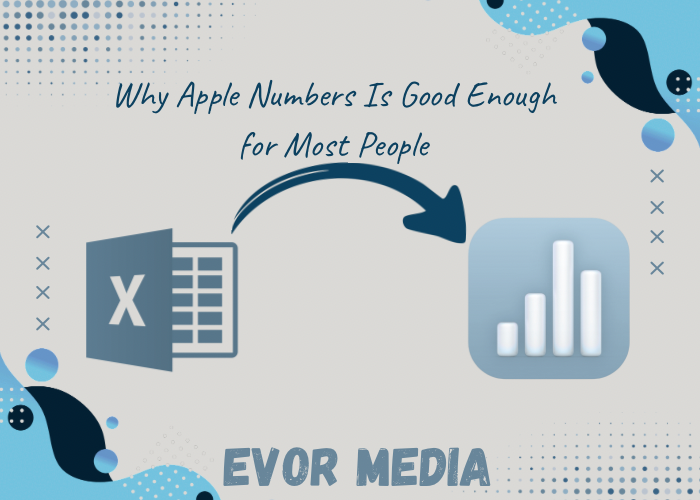
When people think about spreadsheet software, the name that usually comes to mind is Microsoft Excel—and for good reason. It’s been around for decades, it’s incredibly powerful, and it’s widely used in industries ranging from finance to engineering. But what if you’re not a financial analyst or data scientist? What if you just want to organize your personal finances, track a project, or build a clean-looking chart?
Here’s the truth that many tech-savvy people won’t say out loud: Apple Numbers is more than good enough for most users. In fact, for a large number of people, it’s the better choice.
This post explores why Numbers is a perfectly capable spreadsheet tool for everyday use, what makes it different from Excel, and why learning to use it is a smart and practical decision—especially if you’re already embedded in the Apple ecosystem.
1. Numbers Has a Clean, User-Friendly Interface
The first thing you’ll notice about Apple Numbers is its focus on design and simplicity. Unlike Excel, which opens with a dense grid of cells, Numbers greets you with a blank canvas. You can place tables, charts, images, text, and shapes wherever you want on the sheet.
This layout is more visual and less intimidating, especially for beginners or casual users. Think of it as a hybrid between a spreadsheet and a presentation tool. It’s particularly helpful when you’re:
- Creating reports that mix data with narrative
- Designing budgets you actually want to look at
- Laying out planners or checklists
- Building interactive dashboards
Apple designed Numbers to help you tell a story with your data—not just crunch it.
2. Most People Don’t Need Excel’s Power Features
Yes, Excel is incredibly powerful. It can handle:
- Massive datasets
- Pivot tables
- Macros and scripting
- Complex business intelligence functions
But how many people actually use those features?
If you’re a:
- Student tracking assignments
- Freelancer creating an invoice
- Homeowner managing a renovation budget
- Parent organizing a family schedule
- Entrepreneur building a basic inventory
…then Numbers probably offers everything you need, and more.
For basic to intermediate needs, Numbers offers:
- Over 250 built-in functions
- Intuitive charts and graphs
- Conditional highlighting
- Data validation
- Drop-down menus and sliders
- Easy-to-build formulas
It’s less about deep complexity and more about smart design that meets everyday needs with minimal effort.
3. It’s Free and Already on Your Apple Devices
One of the strongest cases for using Apple Numbers is simple: you already own it.
If you have a Mac, iPad, or iPhone, Numbers comes free. You don’t have to pay for a subscription, deal with licensing, or worry about updates—it’s part of Apple’s iWork suite, just like Pages and Keynote.
This makes it incredibly accessible to:
- Students on a budget
- Small business owners
- Nonprofits
- Casual users
On the other hand, Excel is part of the Microsoft 365 subscription, which costs $70–100+ per year for individuals. For those who don’t need the full power of Excel, that’s money better spent elsewhere.
4. Beautiful Output With Minimal Work
Numbers makes it easy to create polished, professional-looking spreadsheets. Fonts, spacing, color palettes, and chart styles all have that clean, modern Apple look right out of the box.
No fiddling with clunky formatting. No battles with text wrapping or alignment.
Want to create a budget that doesn’t look like it came from a 1997 accounting textbook? Numbers can help you do that with:
- Built-in templates for budgets, planners, invoices, and more
- Drag-and-drop layout control
- Transparent backgrounds for charts (great for presentations)
- Instant chart previews and formatting
If you need to present data visually—to a client, your boss, or even just yourself—Numbers helps your work shine without extra effort.
5. Seamless Integration Across Devices
Numbers is tightly integrated into Apple’s ecosystem. Your spreadsheets are automatically saved to iCloud, so you can open and edit them across your:
- Mac
- iPad
- iPhone
- Web browser via iCloud.com
Start a spreadsheet on your iPhone while commuting, tweak it on your Mac at home, and present it on your iPad during a meeting. It’s seamless.
And thanks to iCloud sharing, collaborating with others is simple—no emailing attachments back and forth. You can invite others to view or edit your spreadsheet in real time, with changes synced instantly.
6. It Plays Nicely with Excel (Most of the Time)
Many people avoid Numbers because they’re worried about compatibility. What if a colleague sends you an Excel file? What if you need to share a file with someone who doesn’t use Numbers?
The good news is: Numbers can open, edit, and export Excel files (.xlsx). While some complex macros or custom formatting might not carry over perfectly, for standard spreadsheets, the transition is usually smooth.
In practice:
- You can import Excel files into Numbers and edit them
- You can export Numbers files to Excel when needed
- You can collaborate with Excel users by converting files before sending
For day-to-day needs, this makes Numbers flexible and cooperative, not isolating.
7. Learning Numbers Is Easier Than You Think
Because of its clean design and intuitive features, Numbers is easier to learn than Excel—especially if you’re new to spreadsheets.
You don’t need to take a course or read a manual. In fact, you can start creating meaningful documents within minutes just by experimenting with:
- Tables and charts
- Built-in templates
- Simple formulas like SUM(), AVERAGE(), IF()
- Interactive elements like sliders and checkboxes
And if you do want to go deeper, Apple offers excellent (and free) tutorials through:
- Apple Support
- Apple’s YouTube channel
- Online communities and forums
- Built-in help features
In short: the learning curve is gentle, and the payoff is immediate.
When You Shouldn’t Use Numbers
To be fair, Numbers isn’t perfect for every situation. You might be better off with Excel if you:
- Work with massive datasets
- Use advanced financial modeling tools
- Depend on pivot tables, Power Query, or macros
- Build database-driven spreadsheets
But for the average user—especially within the Apple ecosystem—Numbers is a delightfully capable and refreshingly modern alternative.
Conclusion: Numbers Deserves a Second Look
Apple Numbers might not be the loudest name in spreadsheets, but it quietly does what most people need—and it does it beautifully, simply, and for free.
So if you’ve ignored it or dismissed it in the past, give it another shot. Take the time to explore a few templates, learn a handful of formulas, and build something that makes your life easier.
Chances are, you’ll find that Numbers isn’t just good enough—it’s exactly what you needed all along.
Latest Blog Posts
Stay informed and inspired with our latest blog posts. Discover insights, tips, and trends across various topics.
-
Phone Chargers: The Most Underrated Tech You Use Every Day
Phone chargers live in that strange category of tech we use constantly—but rarely think about.…
-
Stereo system from 1979
The system included Radio Shack house brand Realistic components: • ⁃ Stereo microphone Back in…
-
DaVinci Resolve vs Final Cut Pro
Choosing the Right Editing Tool for Your Creative Workflow Not long ago, professional video editing…

Pumpkins & Penguins
Sed ut perspiciatis unde omnis iste natus